If you trade stocks through Interactive Brokers (IBKR), you already have access to detailed trade data — but it's sitting in IBKR's system doing nothing. This guide shows you exactly how to export your trades from IBKR and import them into SpotTradeJournal in under 2 minutes, so you can start tracking your P&L, win rate, and mistakes automatically.
No manual entry. No spreadsheets. Just your real trades, imported correctly.
What You'll Need
- An active Interactive Brokers account (live or paper)
- A SpotTradeJournal account (start your free 7-day trial here)
- About 2 minutes
Part 1: Export Your Trades from IBKR
Step 1 — Log in to IBKR Client Portal
Go to interactivebrokers.com and log in to your account. You'll land on the Client Portal dashboard.
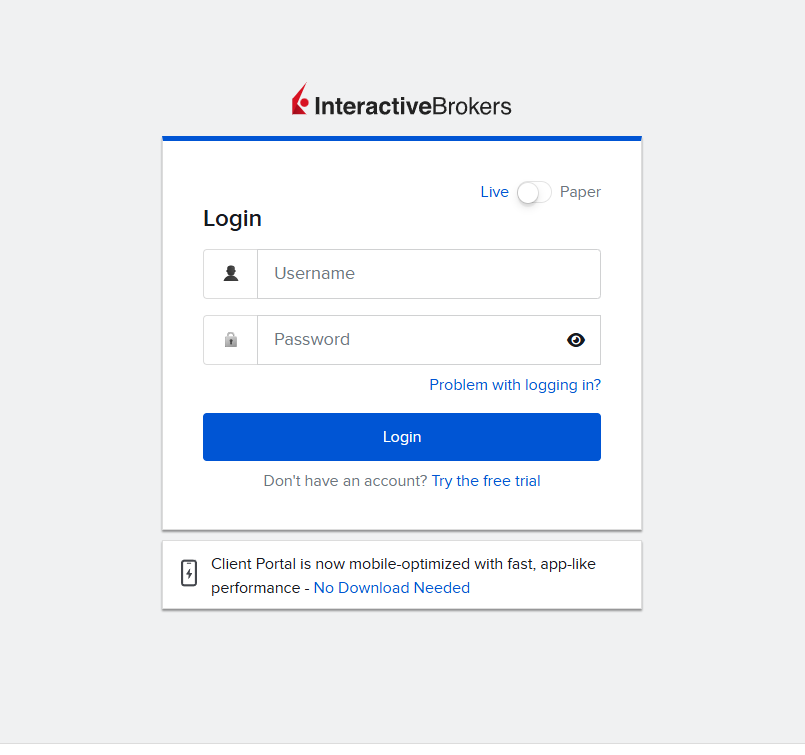 Log in to the IBKR Client Portal at interactivebrokers.com
Step 2 — Navigate to Performance & Reports
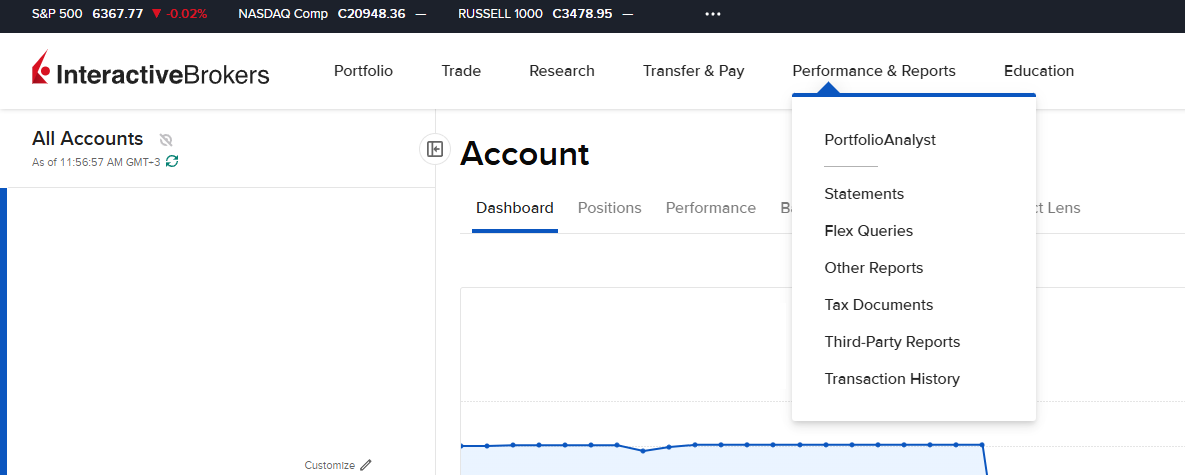
In the top navigation bar, click Performance & Reports. A dropdown menu will appear with several options.
 Click Performance & Reports in the top navigation bar
Step 3 — Click "Third-Party Reports"
From the dropdown, select Third-Party Reports. This is the section that lets you export your trade data in formats compatible with external tools like SpotTradeJournal.
 In Third-Party Reports, find the "Third-Party Downloads" section at the bottom
Step 4 — Select Your Account (if you have multiple)
If you have more than one IBKR account, a dialog will appear asking you to select which account to export from. Choose the account you want to import trades from and click Continue.
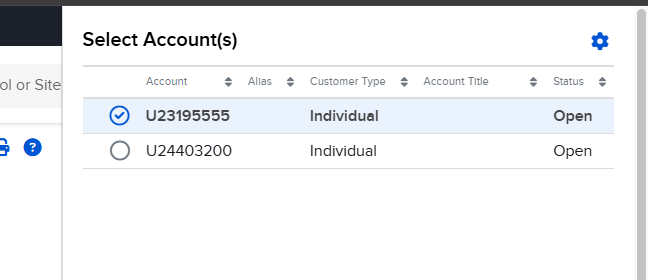 Select the account you want to export trades from
Tip: If you only have one account, IBKR will skip this step automatically.
Step 5 — Select TradeLog as the Provider and Download
In the Third-Party Downloads section, you'll see a Provider dropdown. Open it and select TradeLog. Then choose your desired date range in the Period field and click Download.
This will download a .tlg file to your computer — this is the format SpotTradeJournal uses to import your trades with full accuracy.
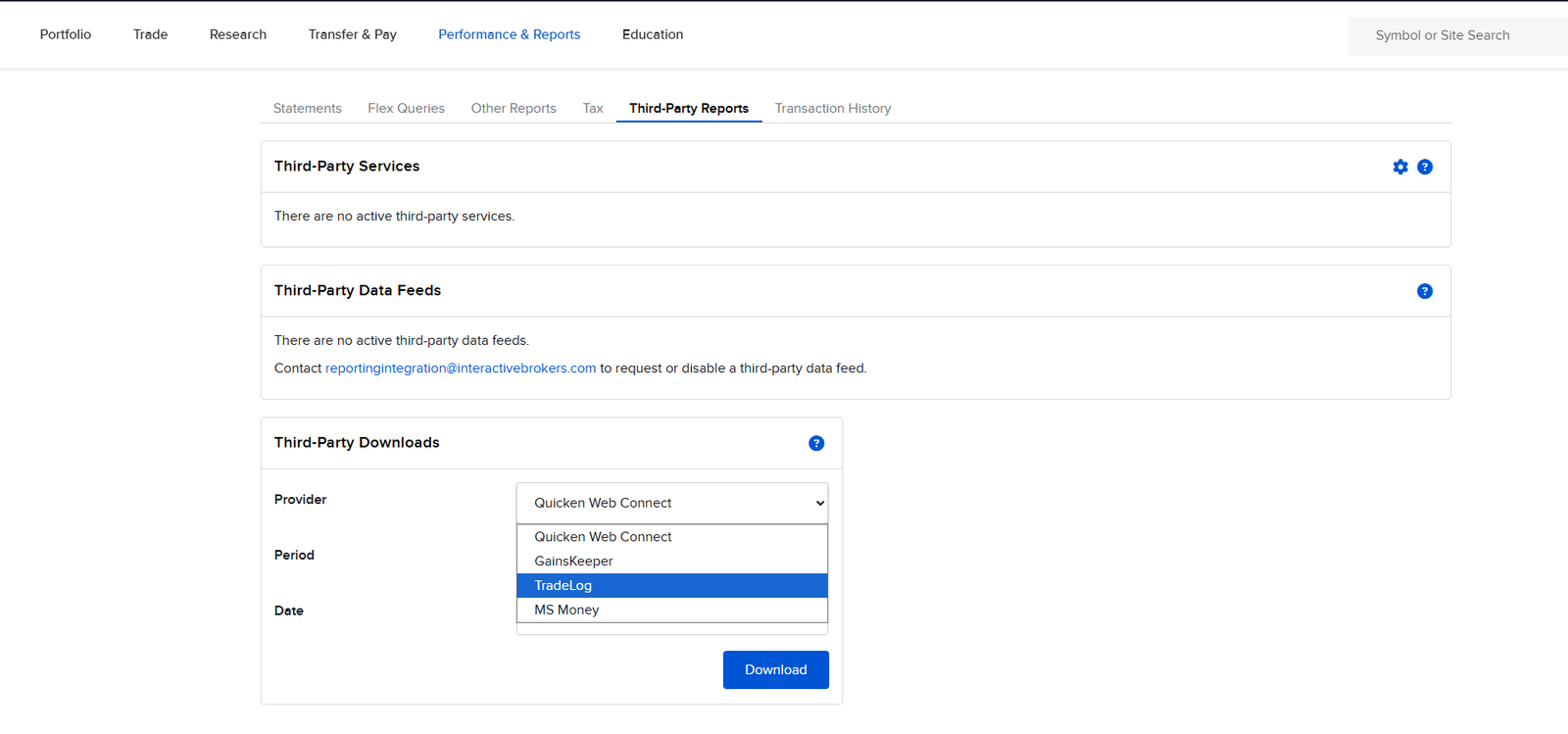 Select TradeLog from the Provider dropdown, choose your date range, then click Download
Step 6 — Confirm the .tlg File Downloaded
Check your Downloads folder. You'll see a file named something like U23195555_20260327.tlg — the number before the underscore is your account ID, and the date is when it was exported.
 The downloaded .tlg file — ready to import into SpotTradeJournal
Part 2: Import Your Trades into SpotTradeJournal
Step 7 — Log in to SpotTradeJournal
Head to spottradejournal.com and log in to your account. If you don't have an account yet, start your free 7-day trial — no credit card needed.
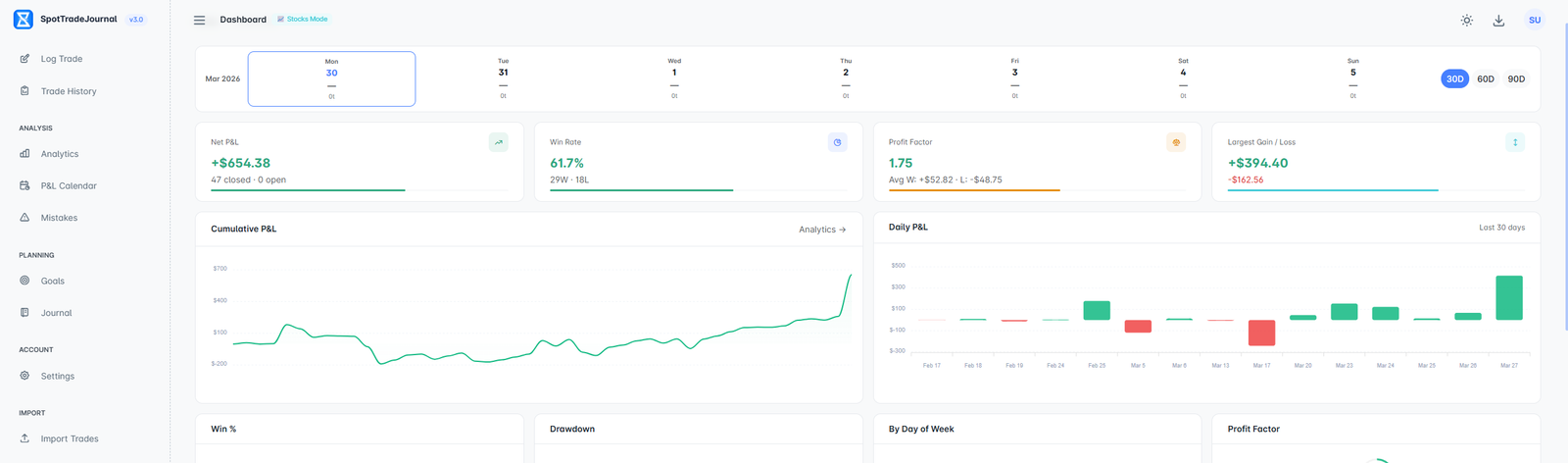 Log in to SpotTradeJournal — or start a free trial if you don't have an account
Step 8 — Go to Import Trades and Select IBKR .tlg
In the left sidebar, click Import Trades. You'll see a list of supported import formats. Select IBKR — .tlg File (marked as Recommended for IBKR users). Then drag and drop your .tlg file into the upload area, or click to browse for it.
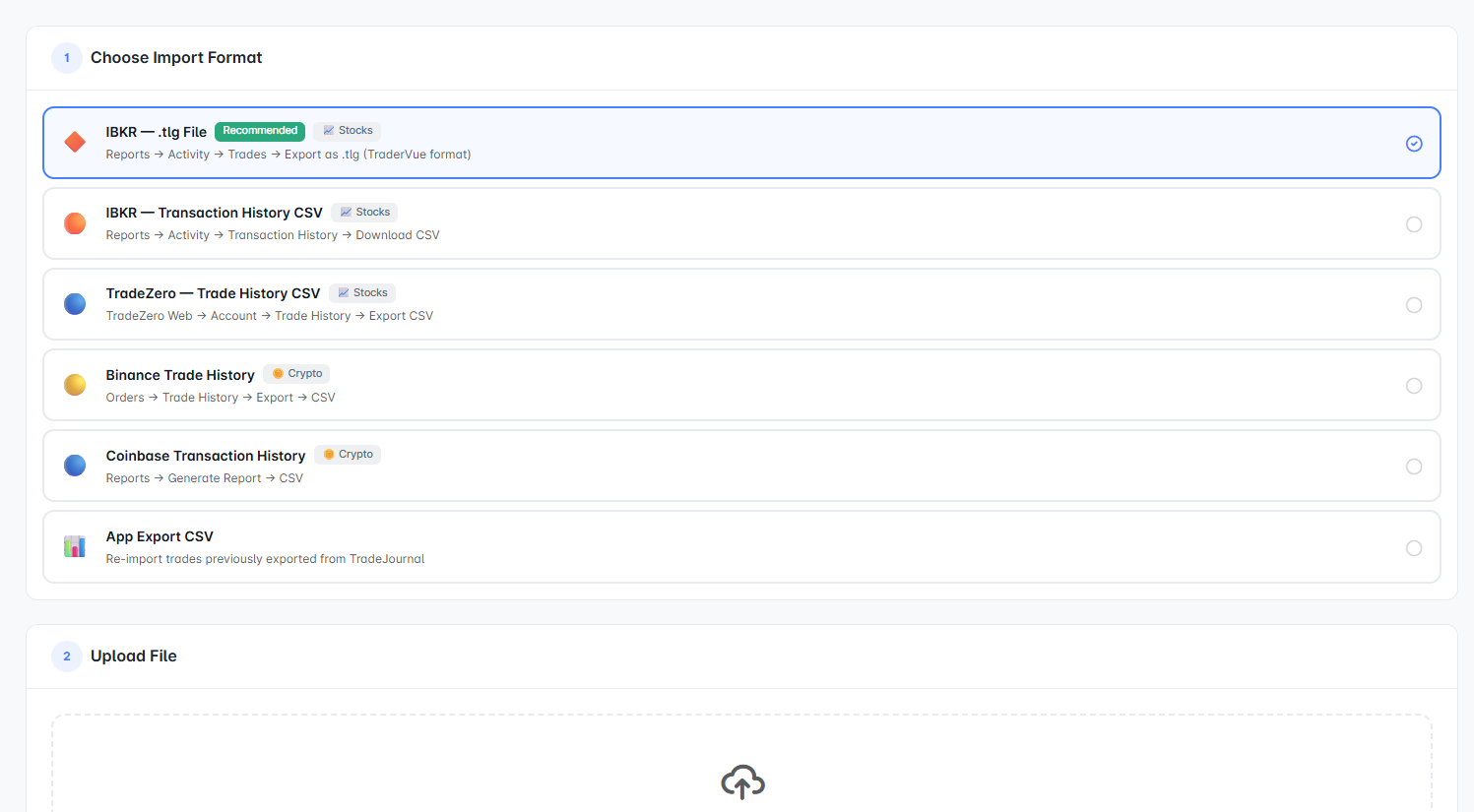 Select "IBKR — .tlg File" as your import format, then upload your downloaded file
Step 9 — Preview and Confirm Your Trades
SpotTradeJournal will parse the file and show you a preview of all the trades it found — symbol, date, entry price, exit price, quantity, fees, and calculated P&L for each one. Take a moment to review the list and make sure everything looks correct.
You'll also see a summary at the top showing total trades, wins, losses, and overall P&L from the import.
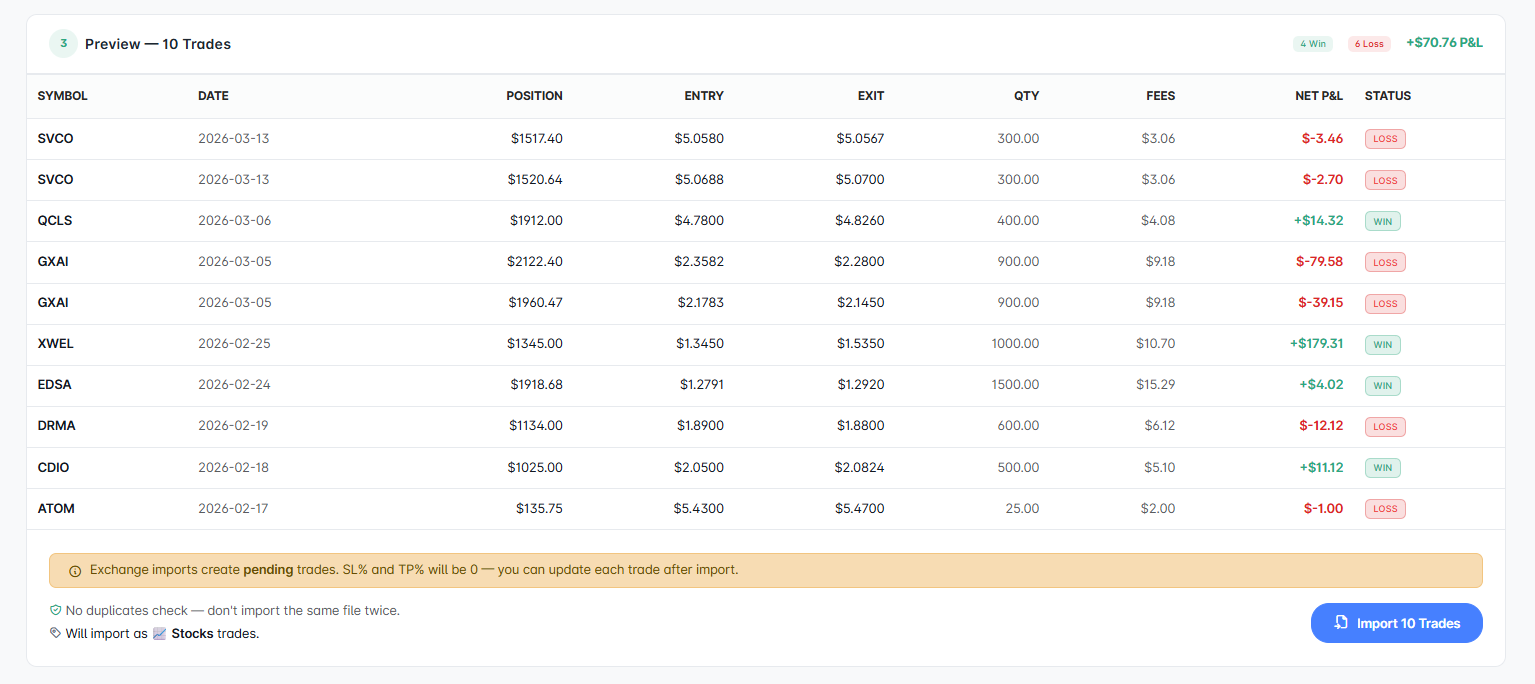 Preview your trades before importing — SpotTradeJournal shows full P&L for each trade
Important: SpotTradeJournal checks for duplicates automatically. If you import the same .tlg file twice, it will not create duplicate trades.
Step 10 — Click "Import Trades" and You're Done
Click the Import Trades button in the bottom right. SpotTradeJournal will process the file and redirect you to your Trade History, where all your imported trades will appear — correctly matched into round-trips, with full P&L calculated.
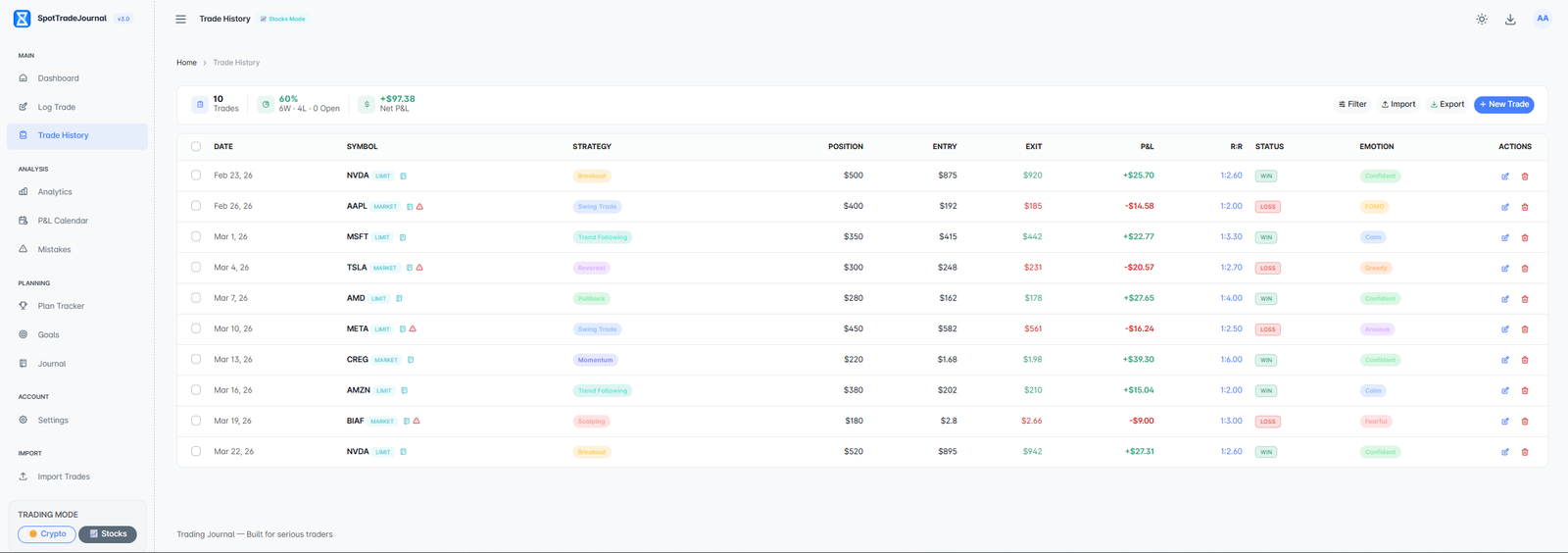 Your dashboard will immediately update with your imported trades, equity curve, and analytics
What Happens After Import
Once your trades are imported, SpotTradeJournal automatically calculates:
- Net P&L — total profit and loss across all imported trades
- Win rate — percentage of trades that were profitable
- Profit factor — ratio of gross profit to gross loss
- Equity curve — your cumulative P&L over time
- P&L by day of week — see which days you trade best
You can also go into each individual trade and add your pre-trade notes, emotion tag, mistake tags, and entry/exit screenshots to build a complete picture of every trade you make.
Common Questions
Why use the .tlg file instead of the CSV?
The IBKR .tlg file (TradeLog format) contains more structured data than the standard CSV export. It handles round-trips — where you buy and sell the same ticker multiple times on the same day — much more accurately. We recommend .tlg for all IBKR users.
How often should I import?
Most traders import weekly — either at the end of the trading week on Friday, or first thing Monday morning. Some prefer to import daily. Since SpotTradeJournal deduplicates imports automatically, you can import as frequently as you like without creating duplicates.
Can I import trades from multiple IBKR accounts?
Yes. Simply repeat the export process for each account and import each .tlg file separately. All trades will appear in your unified Trade History and analytics.
What if my trades aren't matching up correctly?
This can occasionally happen with complex order types or partial fills. If you notice any mismatches, you can edit individual trades directly in your Trade History. If you're seeing a consistent issue, contact our support team and we'll help diagnose it.
Ready to Start?
If you don't have a SpotTradeJournal account yet, you can start a free 7-day trial — no credit card required. Import your IBKR trades and see your equity curve, win rate, and profit factor within minutes.